Regional introduction
A promised remote-control function can be checked against its intended command, player platform, and expected feedback. The complete manual chapter contains the command table and examples for RS232 and Android Intents. Use it to frame supplier evidence questions and record the specific test setup in the project.
Complete manual chapter
Command Functionality
Configure a set of commands for users to select and send via the CMS, schedule from the CMS or include in Layouts.
Create commands to apply for all Players or create command strings per Players, particularly useful if your have a mixed network.
Commands provide easy access to functionality for RS232 and Android Intents.
Creating Commands
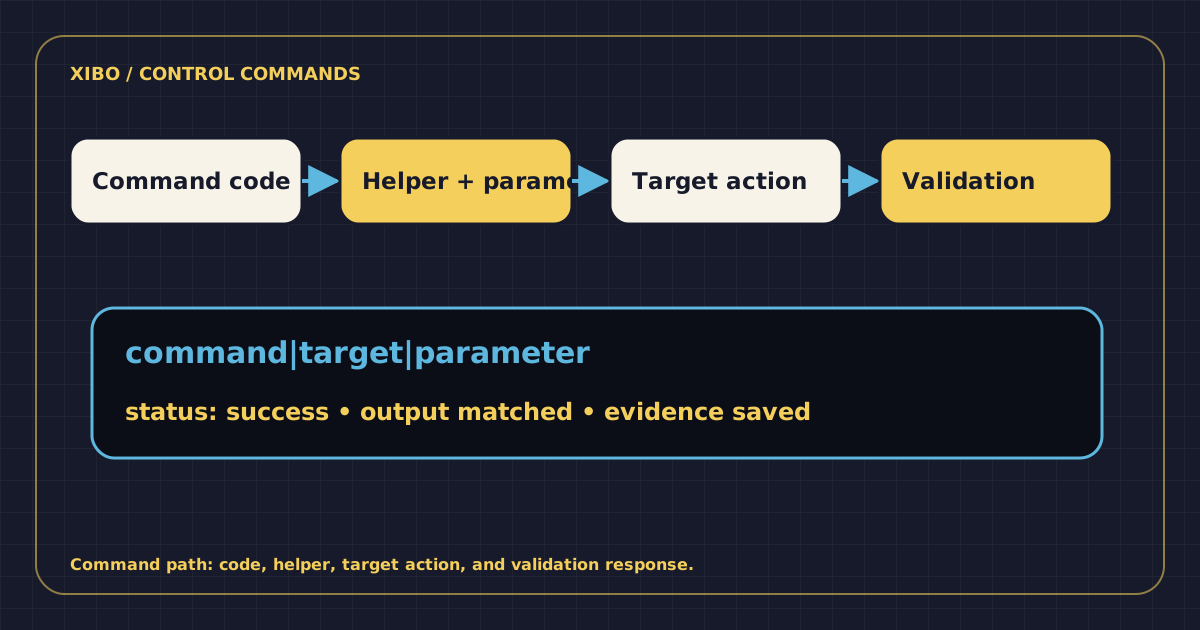
Commands should have the following structure:
- Code
- Command string
- Validation string
- Create Alert On string (never, always, success, error)
Parameters
Command strings can have parameters separated by the | pipe character, e.g. mute|1. Where this is the case the command string should be separated by | and the first element be used to determine the type of command to run.
Helpers
Command Helpers are prefixes that can be added to the Command String in order to take a more advanced action. Commands without a prefix are executed in the shell of the operating system which runs the Player. cmd.exe on Windows and shell on Android.
Validation
The Validation String is used as a comparison to the Command output and if it matches then the Command is considered a success. The Validation String must be an exact match.
Supported Commands
| Command | Command String | Parameters |
|---|---|---|
| Show status window | showStatusWindow | Timeout in seconds (int) default 60 |
| Send status | status | |
| RS232 | rs232 | 1. Connection 2. Command See RS232 section below for further details |
| Android Intent | intent | See Android Intent section below for further details |
| Ping | ping | |
| Set Timezone | timezone | 1. IANA timezone ID |
| Set Auto Time | time_auto | |
| Set Ntp | time_ntp | |
| Set Auto Timzeone | timezone_auto | |
| Philips control | tpv | 1. Operation screenon screenoff backlighton backlightoff mute unmute |
| Philips LED control | tpv_led | 1. Colour off red white green blue on |
| Sony Screen Control | sony | 1. screenOff 2. screenOn |
| Mute | mute | 1. Operation 1 = on 0 = off |
| Screen On | screenOn | |
| Screen Off | screenOff | |
| Screen Input Source | screenInputSource | 1. Source hdmi1 |
| Reboot | reboot | |
| Refresh | refresh | |
| Resize | resize | 1. Percentage 2. Quadrant top-left top-right bottom-left bottom-right |
| Orientation | orientation | 1. Rotation degrees (0, 90, 180, 270) |
| Licence Check | licenceCheck | |
| Current Geo Location | currentGeoLocation | |
| Make a HTTP request | http | 1. URL 2. Content Type 3. Details (JSON) method body |
| Configure Wifi | wifi | 1. ssid 2. path 3. identity 4. password 5. domain 6. saveRoot (true/false, default: false) 7. rootCaFileName 8. rootCaAlgo (default: pkcs12) |
| Restart Wifi if disconnected | restartWifiIfDisconnected | |
| Generic Command | Any unmatched code | |
| Power off | poweroff | |
| Panel off | displayoff | |
| Panel on | displayon | |
| Set picture property | picture_property | picture value |
Not all player platforms support all types of command.
webOS and Tizen have a set of additional commands which if are used as Scheduled commands there is no requirement to set for the display profile.
See the Device Compatibility sheet for full information.
Ask your administrator for further information regarding device compatibility.
HTTP
HTTP commands allow triggering or interacting with web based endpoints by defining pre-set commands to make HTTP calls to external services (such as a queue management counter or a sensor) to trigger Layout changes, durations of widgets or activate conditional content in real time.
Commands can be triggered on demand via XMR, scheduled at specific dates/times or tied to an interactive touch or click action on a Layout.
RS232
Commercial displays often have a serial interface for turning the monitor panel on and off. Xibo can use the RS232 Command helper to send these Commands by using the rs232 prefix in the Command String. The format of the command is rs232|<connection string>|<command>.
The connection string should be provided in the following format on Windows:
<COM#>,<Baud Rate>,<Data Bits>,<Parity|None,Odd,Even,Mark,Space>,<StopBits|None,One,Two,OnePointFive>,<Handshake|None,XOnXOff,RequestToSend,RequestToSendXOnXOff>,<HexSupport|0,1,default 0>
Please note: If you need to send your Command in HEX format, you should specify the byte string in the Command String, for example: 7E 00 00 FF 00 00 00 00 00 00 00 00 00 00 00 00 00 FF , this will be converted to a byte stream by the player. You will need to set the HexSupport element of the connection string to 1.
The connection string should be provided in the following format on Android:
<DeviceName>,<Baud Rate>,<Data Bits>,<Parity>,<StopBits>,<FlowControl>
Each setting is represented by a corresponding number:
DATA_BITS_5 = 5;
DATA_BITS_6 = 6;
DATA_BITS_7 = 7;
DATA_BITS_8 = 8;
PARITY_NONE = 0;
PARITY_ODD = 1;
PARITY_EVEN = 2;
PARITY_MARK = 3;
PARITY_SPACE = 4;
STOP_BITS_1 = 1;
STOP_BITS_15 = 3;
STOP_BITS_2 = 2;
FLOW_CONTROL_OFF = 0;
FLOW_CONTROL_RTS_CTS = 1;
FLOW_CONTROL_DSR_DTR = 2;
FLOW_CONTROL_XON_XOFF = 3;
The Command itself is a string which gets sent over RS232 using the connection details.
Android Intent
Android Display Profiles can use the intent helper to specify an intent that should be called when the Command executes. The format of the Command is intent|<type|activity,service,broadcast>|<activity>|[<extras>] .
[<extras>] is an optional parameter available from Android v2 R206 used to provide additional data to the Intent. This must be a JSON formatted string containing an array with at least one object. The object format is below and must be on one line.
{
  "name": "<extra name>",
  "type": "<type|string,int,bool,intArray>",
  "value": <the value of the above type>
}
For example, on some devices you can program the firmware to set on/off times.
[{
  "name": "timeon",
  "type": "intArray",
  "value": [2018, 7, 28, 8, 40]
}, {
  "name": "timeoff",
  "type": "intArray",
  "value": [2018, 7, 28, 21, 40]
}]
This would be set on the command as:
intent|broadcast|activity|[{ "name": "timeon", "type": "intArray", "value": [2018, 7, 28, 8, 40] }, { "name": "timeoff", "type": "intArray", "value": [2018, 7, 28, 21, 40] }]
Commands containing an intent helper are only available on devices running the Android operating system.
Adding Commands to the CMS
-
Go to Commands under the Displays section of the main CMS menu
-
Click the Add Command button
-
Give the Command a Name
-
Enter a Code (such as the command string) to easily identify
-
Use the Command drop down field and select Free Text
-
Enter a Command String
-
Click to Save
Send Commands from the CMS
- Navigate to Displays from the main CMS menu
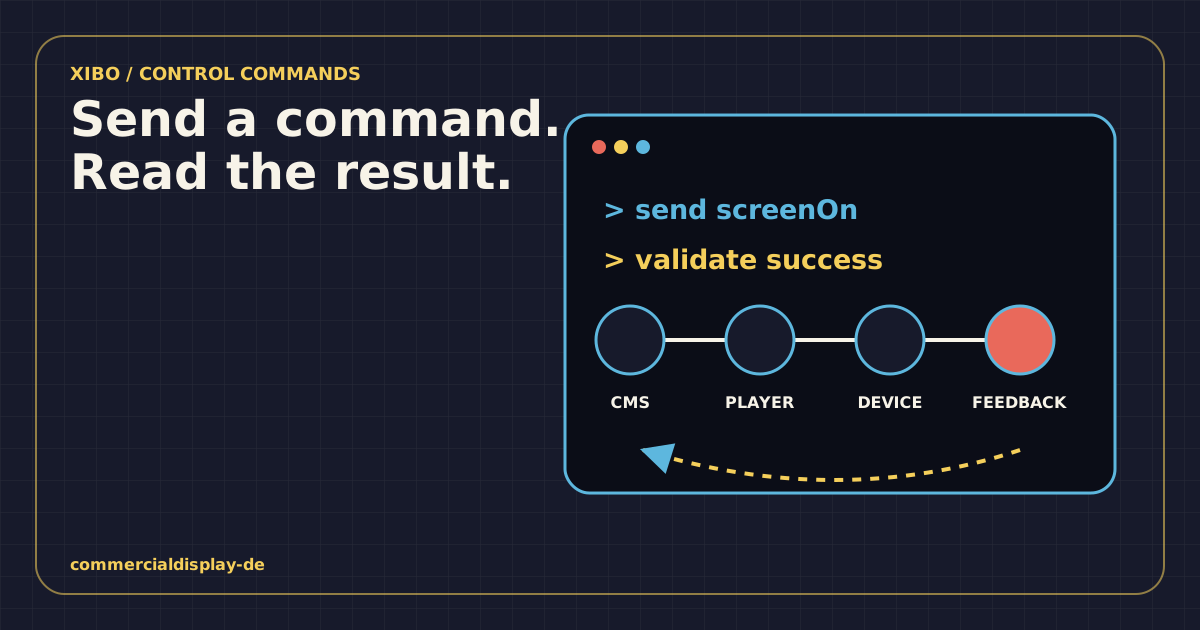
- Use the row menu for a Display and select Send Command
- Use the drop down menu to select the command to use
- Click to Save
Schedule Commands from the CMS
- Navigate to Schedule from the main CMS menu
- Click the Add Event button
- Use the Event Type drop down and select Command
- Select the command to use from the list
- Click Next and set the Displays
- Click Next and set timings
- Click Finish if no further actions (such as Repeats) are required
Scheduled commands are executed once and only require a Start date and time. The Command can be executed up to 10 seconds after the time selected.
Shell Command Widget
Use the Shell Command Widget to run external Commands based on the Layouts activity.
Shell Commands with a Command as their source act in the same fashion as normal shell commands. The Command is executed when the Widget is shown on the Layout.
A Shell Command can also be a Command String with options for all Players provided. This allows Users to add Commands ‘ad-hoc’ for one-time use.
HDMI-CEC
HDMI-CEC is a bus that is implemented on nearly all new large-screen commercial displays that have HDMI connectors. This bus (which is physically connected within normal HDMI cables) supports control signals that can perform power-on, power off, volume adjusts, selection of video source and many of the features that are accessible via the remote control. It can also control most other hardware on the HDMI bus.
Xibo doesn’t provide a direct interface to HDMI-CEC as there are many different manufacturer specifications, however, it is possible to control HDMI-CEC via a batch file.